Payara Server: installation, configuration, and use cases
What is Payara Server?
Payara Server is a Jakarta EE application server derived from GlassFish. It runs packaged Java web and enterprise applications and provides managed services such as HTTP, dependency injection, persistence, transactions, messaging, security, and database connection pools.
Unlike a servlet-only runtime, Payara supplies a broader enterprise Java platform. Administrators configure domains, applications, listeners, resources, and monitoring through the Admin Console or the asadmin command-line tool.
The open-source community distribution is now published as Azul Payara Community. This guide uses Payara Server 7 and a ZIP installation; use the latest supported patch release for new deployments.
Payara Server 7 targets Jakarta EE 11. The current supported-platform matrix lists Java 21 and Java 25 for supported JVM vendors. This guide uses Java 21; always confirm the exact JDK vendor, patch level, operating system, and Payara release in the official compatibility matrix.
Common use cases
- Business applications that need Jakarta EE APIs such as Jakarta REST, CDI, Jakarta Persistence, transactions, messaging, and managed security.
- REST services and MicroProfile workloads that benefit from a standard Java runtime, health checks, metrics, configuration, and fault-tolerance APIs.
- GlassFish or Java EE modernization where an application can move to a supported Payara line after its API and namespace compatibility have been checked.
- Multi-application hosting where teams want centrally managed deployments, JDBC/JMS resources, logging, and monitoring.
- Clusters and high availability for applications that need multiple server instances behind a load balancer. A cluster still requires deliberate session, database, and failure-recovery design.
Payara Server is a full application-server distribution. For a smaller container-oriented runtime, compare it with Payara Micro and choose the product that fits the deployment model.
Requirements and compatibility
Install a JDK supported by the exact Payara release. Java 21 is a practical LTS choice for a new installation; Java 25 is also listed in the current matrix. Do not assume that the newest JDK automatically works with an older application-server release.
Match the server generation to the application API. Payara 7 is for Jakarta EE 11 applications; Payara 6 targets Jakarta EE 10. Older Java EE 8 applications use the javax.* namespace and may need an older compatible server or a planned migration to the jakarta.* namespace. Verify framework, driver, and JDK compatibility before changing the runtime.
You also need a WAR or EAR built for the selected Jakarta EE version. Payara is the runtime, not the database: install PostgreSQL, MySQL, or another supported database separately if the application needs persistent storage.
Install Payara Server on Linux
The steps below use Ubuntu or Debian and the community ZIP archive. The release number is an example from the current documentation; replace it with the latest release shown on the official Payara downloads page.
sudo apt update sudo apt install -y openjdk-21-jdk unzip java -version
Download the Payara Server 7 ZIP bundle, then extract it into a directory owned by your user:
mkdir -p "$HOME/opt" unzip "$HOME/Downloads/payara-7.2026.9.zip" -d "$HOME/opt" export PAYARA_HOME="$HOME/opt/payara7" export PATH="$PAYARA_HOME/bin:$PATH" asadmin version
The archive normally creates a payara7 directory. Update the ZIP filename and PAYARA_HOME if the archive you downloaded has a different name or extraction path. On Windows, extract the same ZIP and run bin\asadmin.bat from PowerShell.
Start Payara and open the Admin Console
A fresh installation includes a default domain named domain1. Start it from a terminal:
asadmin start-domain domain1 asadmin list-domains
Open the local Admin Console at http://localhost:4848. The default application HTTP listener is usually on port 8080, so a deployed web application is served at http://localhost:8080/<context-root>/. Stop the domain with asadmin stop-domain domain1.
Keep the administration port private. Set a strong administrator password, use secure administration for remote management, and restrict port 4848 with a firewall or private network. Do not expose an unsecured Admin Console to the public Internet.
Deploy a web application
Build an application as a WAR or EAR compatible with the server, then deploy it using asadmin:
asadmin deploy target/myapp.war asadmin list-applications
The context root is commonly based on the WAR name, but the application descriptor or deployment settings can override it. You can also deploy from the Admin Console: open Applications, choose Deploy, select the packaged WAR, and confirm the deployment. The first screenshot marks the Applications entry; the second shows an application after deployment.
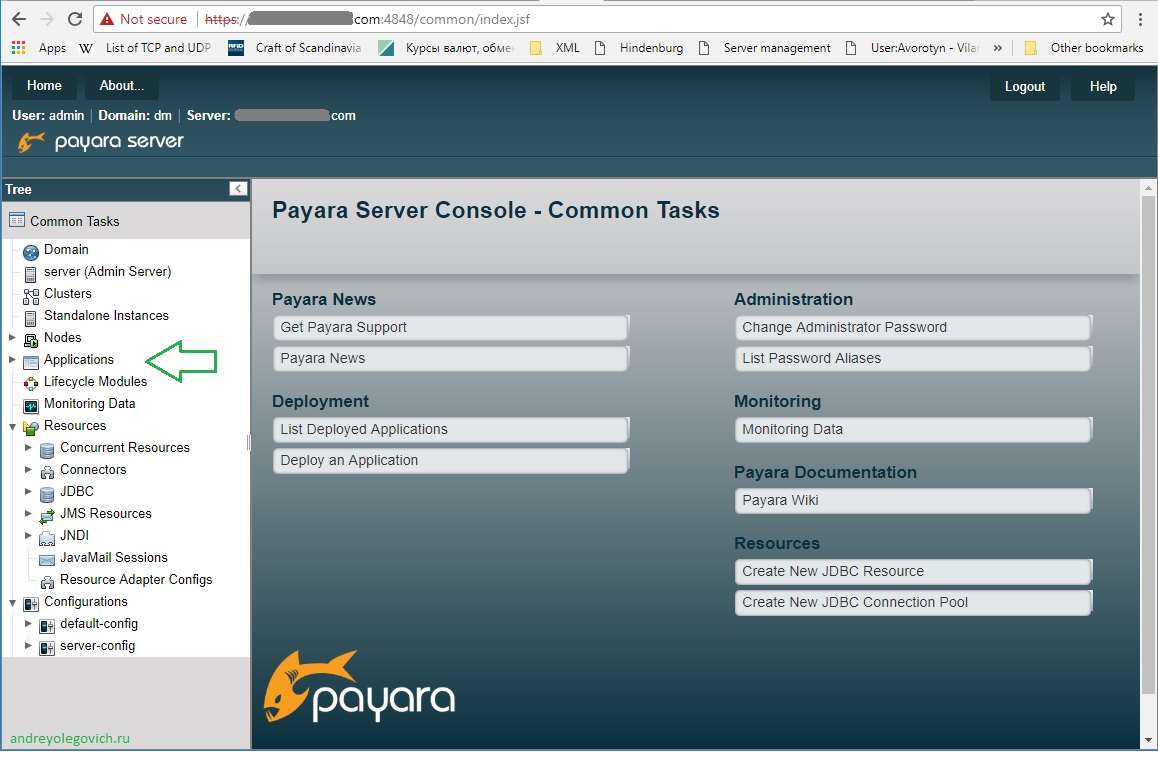
Payara Server 5 console screenshot; menu labels can differ in newer releases.

Configure a PostgreSQL connection
A Jakarta EE application should use a server-managed JDBC resource instead of opening a new physical database connection for every request. Payara maps a JNDI data source to a reusable connection pool.
First install PostgreSQL and make a compatible PostgreSQL JDBC driver available to the Payara domain. The driver JAR can be placed in the domain library directory, for example $PAYARA_HOME/glassfish/domains/domain1/lib; restart the domain after adding a driver. See the official guide for other supported driver installation methods.
- In the Admin Console, open Resources → JDBC → Connection Pools and create a pool named AppPool.
- Choose javax.sql.DataSource as the resource type and org.postgresql.ds.PGSimpleDataSource as the data-source class.
- Set the driver properties for the database host, port, database name, user, and password. A local PostgreSQL example uses localhost, port 5432, and your own database and service-account names.
- Save the pool and use Ping to check the connection. Do not put real production passwords in source code or screenshots.
- Create a JDBC Resource with the JNDI name jdbc/AppDB and associate it with AppPool.
Typical PostgreSQL data-source properties look like this. Replace the example host, database, and user with your values, and supply the password through secure server configuration:
| Property | Example | Meaning |
|---|---|---|
| serverName | localhost | Database host |
| portNumber | 5432 | PostgreSQL port |
| databaseName | appdb | Database name |
| user | payara_app | Application database user |
| password | Secure secret | Do not commit a real password |
The application can look up the configured resource rather than embedding a database URL:
@Resource(lookup = "jdbc/AppDB") private DataSource dataSource;
Size the connection pool with both application concurrency and the database connection limit in mind. For PostgreSQL setup instructions, see the site guide to PostgreSQL.
Tune the HTTP thread pool
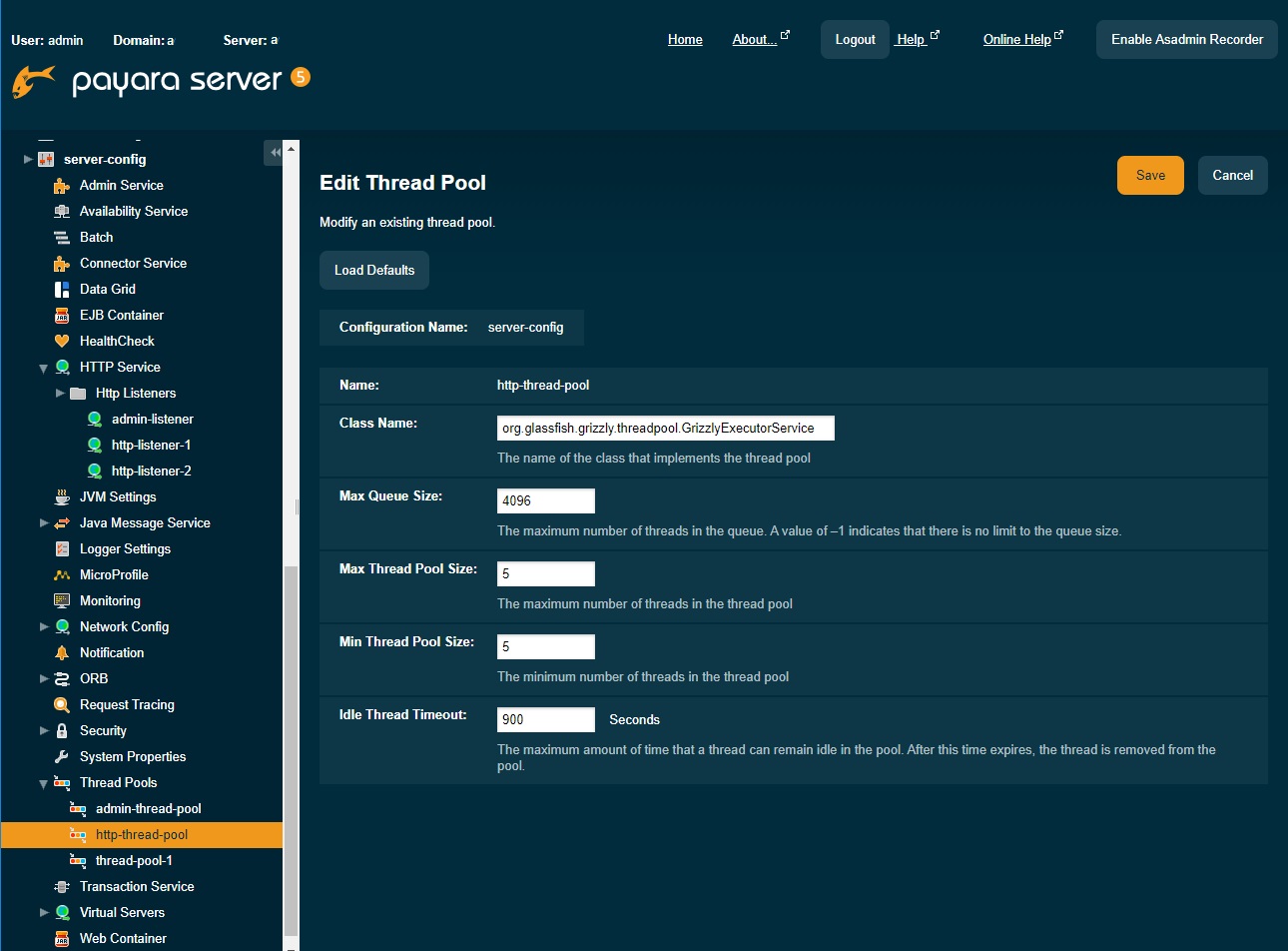
The HTTP thread pool provides worker threads for incoming requests. In the classic Admin Console, open Configurations → server-config → Thread Pools → http-thread-pool. Review Max Thread Pool Size and the related queue and timeout settings. The screenshot below is from Payara Server 5 and shows the older console layout; the names and defaults may differ in Payara 6 or 7.
The screenshot value is an example, not a recommended production setting. Tune from measurements: too few workers can queue requests, while too many can increase context switching and overwhelm a database pool or downstream service. Change one setting at a time and test representative load.
Payara also exposes administration commands for thread-pool settings. For example, the command below sets an illustrative maximum of 32 workers; choose a value from load tests and the capacity of the rest of the system:
asadmin set server.thread-pools.thread-pool.http-thread-pool.max-thread-pool-size=32
Production checklist
- Use a supported Payara/JDK combination and keep both updated with security releases.
- Protect the Admin Console and administration port; terminate public TLS at a properly configured listener or trusted reverse proxy.
- Keep database credentials and other secrets out of the WAR, repository, and command history. Use a managed secret source or secure server configuration.
- Use health checks, logs, metrics, and database-pool validation to find bottlenecks before changing thread counts.
- Back up domain configuration and test restores. For high availability, plan clusters, session handling, load balancing, and database failover as one design.
Official documentation
- Payara Server downloads
- Getting Started with Azul Payara Community
- Supported Java versions and platforms
- Administering database connectivity
- Administering thread pools
Article author: Andrei Olegovich
| GlassFish | |
| Java | |
| PostgreSQL |